Charge a job by card
Charge a customer's card on a completed job, one at a time or in bulk, and know how to hold, refund, or read a decline.
Your Stripe account needs to be connected already — card-charge actions only appear once it is. Under Business Settings → Payment Types, leave Accept Credit Card Payments on (it's on by default). And the job needs to be billed by card, with a card already on file for the customer.
1Charge one job
There are two ways to charge a single job, and they behave differently — pick the one that fits.
-
From Jobs, find the job in the list. If it's billed by card and eligible, its row has a Charge button.
-
Click Charge.
This charges the card immediatelyThe Jobs-list Charge button doesn't ask you to confirm first — it submits the charge and reloads the page. If you'd rather see the amount and card before anything happens, open the job's Insights page instead (next step) and use the Charge! button in its modal.
-
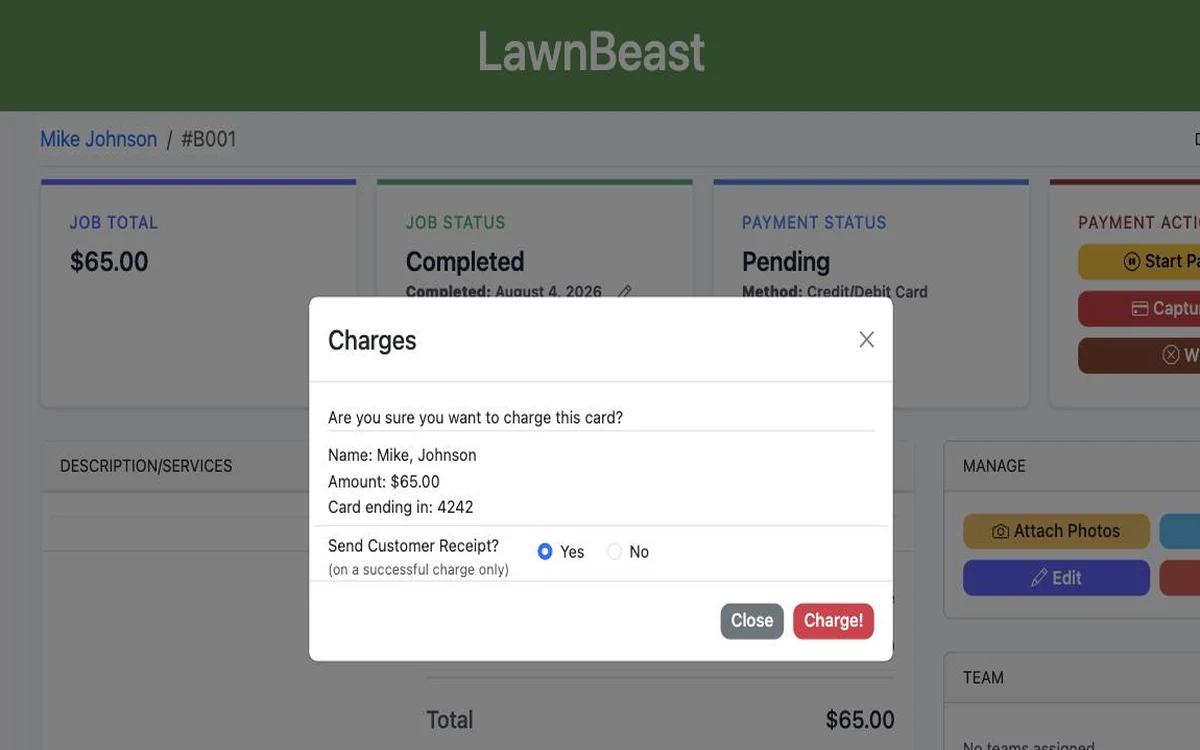
To confirm before charging: open the job's Insights page and click Capture Payment in the quick actions panel. This opens the Charges modal.
-
Check the customer name, amount and the card's last four digits shown in the modal, then choose Send Customer Receipt? — Yes or No. A receipt only goes out if the charge succeeds.
-
Click Charge!.
Because you're charging on the customer's behalf rather than them entering the card themselves, a charge that requires 3D Secure step-up verification fails instead of prompting for it. If that happens, the customer can pay their own invoice through the online pay link, where their browser can complete the extra verification — see Jobs vs. Invoices if it's not clear why an invoice enters the picture here.
How to check it worked
A successful charge shows the job's payment status as Captured — which also makes the job eligible for a customer tip prompt if tipping is turned on (see Set up customer tipping). A failed one shows Declined and records the decline reason on the job.
2Charge several jobs at once
-
Open Payments from the left nav.
-
Select the jobs to charge using each row's checkbox. Only jobs billed by card, with an eligible payment status, show a checkbox at all.
-
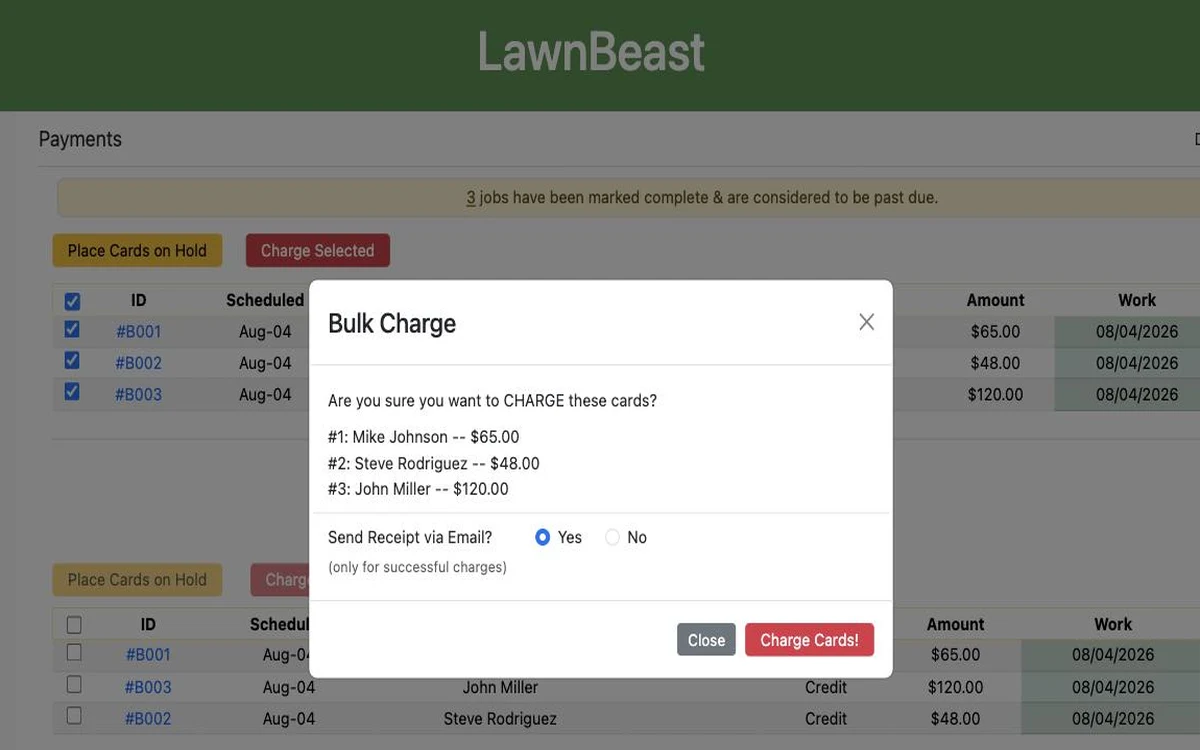
Click Charge Selected.
-
In the Bulk Charge modal, review the listed jobs, choose Send Receipt via Email? — Yes or No — and click Charge Cards!.
How to check it worked
Each job's payment status updates individually — a mixed batch can land with some jobs showing Captured and others Declined, each carrying its own result.
Reference
| Action | Where | What it does |
|---|---|---|
| Start Payment Hold (job) / Place Cards on Hold (bulk) | Job Insights quick actions, or Payments homepage toolbar | Authorizes the card for the amount without capturing funds — for work scheduled ahead of time. |
| Release Hold | Job Insights quick actions | Cancels a held authorization without charging it. |
| Capture Payment | Job Insights quick actions, once a job is on hold | Charges a card that was previously placed on hold, using the same Charges modal. |
| Refund | Job Insights quick actions, per job only | Refunds all or part of a completed charge; can notify the customer. |
Refund is only available one job at a time, from that job's Insights page — there's no bulk refund on the Payments homepage.
| Payment status shown on the job | Meaning |
|---|---|
| Captured | The card was charged successfully. |
| On Hold | A pre-authorization is in place; nothing has been captured yet. |
| Hold Expired | A pre-authorization hold expired before it was captured or released. |
| Hold Released | A pre-authorization hold was cancelled without charging it. |
| Declined | The charge attempt failed; the reason is recorded on the job. |
| No Default Payment Method | The customer has no card on file to charge. |
| Refunded | The full charge was refunded. |
| Partial Refund | Part of the charge was refunded; the job tracks how much remains. |
| Under Dispute | The customer's bank has raised a dispute on the charge. |