Connect your Stripe account
Finish Stripe's onboarding form so you can charge cards, place holds, and issue refunds through LawnBeast.
You don't need a Stripe account already — LawnBeast creates one for you automatically when you sign up. This guide is about finishing its setup, not creating one from scratch. Have your business details and a bank account for payouts on hand; Stripe's own form asks for both.
1Start the connection
-
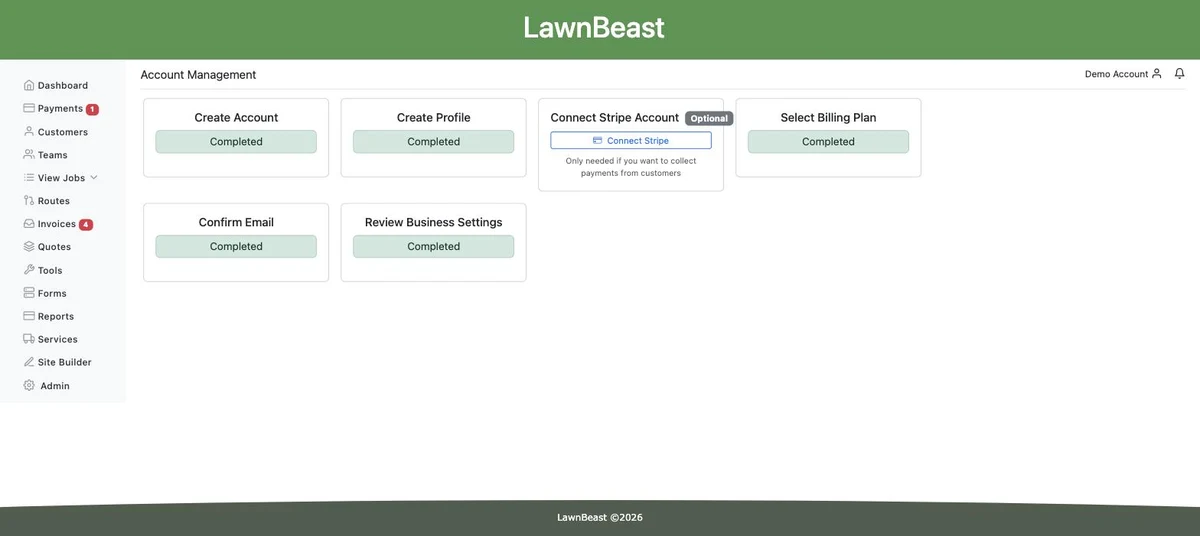
Open Account Management.
-
Find the Connect Stripe Account card — it's badged Optional, with the note "Only needed if you want to collect payments from customers."
-
Click Connect Stripe. It opens Stripe's onboarding form in a new tab.
How to check it worked
A new tab opens showing Stripe's own onboarding form — not a LawnBeast page. If nothing opens, check that your browser didn't block the pop-up.
2Complete Stripe's form
-
Fill in your business or individual details and your bank account for payouts, exactly as Stripe's form asks. This step is entirely on Stripe's site — LawnBeast doesn't see or store what you enter here beyond the resulting account ID.
-
Submit Stripe's form. You're returned to LawnBeast automatically when you finish.
How to check it worked
Back on Account Management, the Connect Stripe Account card now shows Completed instead of the Connect Stripe button. Card charges, holds and refunds are unlocked everywhere they appear in the app.
3If your link expires
Stripe's onboarding links go stale after a while, especially if you start the form and don't finish it right away.
-
Just come back to Account Management and click Connect Stripe again. A fresh link is generated automatically — there's nothing to reset or clear first.
Once this is done, card payments are deposited straight to the bank account you gave Stripe — not to a LawnBeast-held balance. LawnBeast's fee is deducted automatically from each charge before the rest is paid out. To check your balance or payout history, log into dashboard.stripe.com directly with your own Stripe credentials; LawnBeast doesn't generate a separate login link into that dashboard.
How to check it worked
The same as step 2 — the card shows Completed, and card charges, holds and refunds work everywhere in the app.