Create and Send a Quote
Pick an existing customer or a new lead, add itemized line items, set validity and terms, then finalize and email the quote.
If you charge sales tax, set your rate once in Business Settings → Taxes. A quote reads that rate live while it's a Draft, then locks it in the moment you finalize — so set it before you send your first quote, not after.
1Start the quote
-
From the quote board, click New Quote.
-
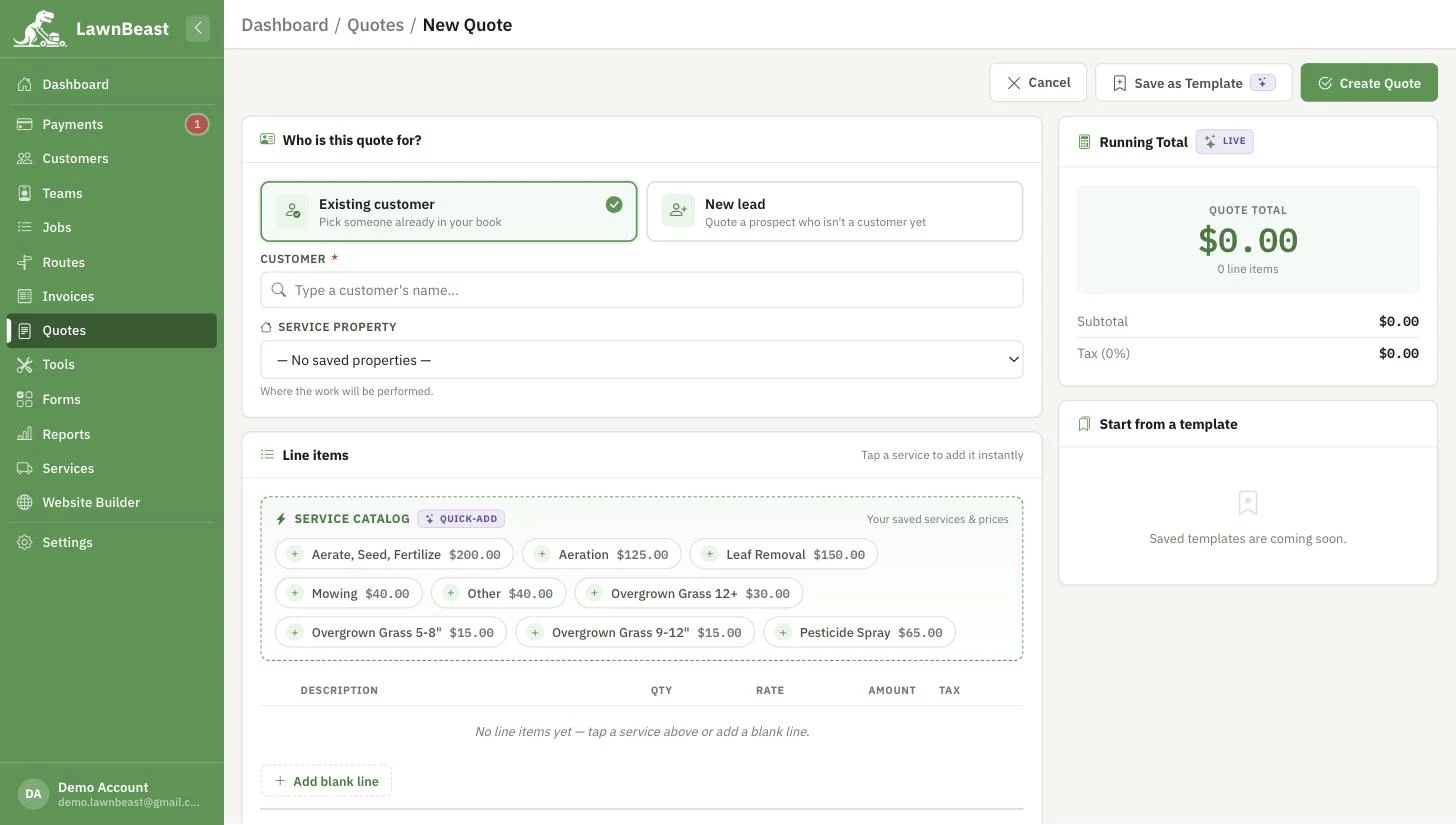
Pick who the quote is for
Choose Existing customer to pick someone already in your book, or New lead to quote a prospect who isn't a customer yet.
- Existing customer — search by name in the Customer field and, if they have more than one property, pick the right one from Service property.
- New lead — fill in First name, Last name, and Service address (all required), plus whichever of Company, Email, Phone, Address line 2, City, State and ZIP you have. Nothing here creates a customer record yet.
2Add line items
-
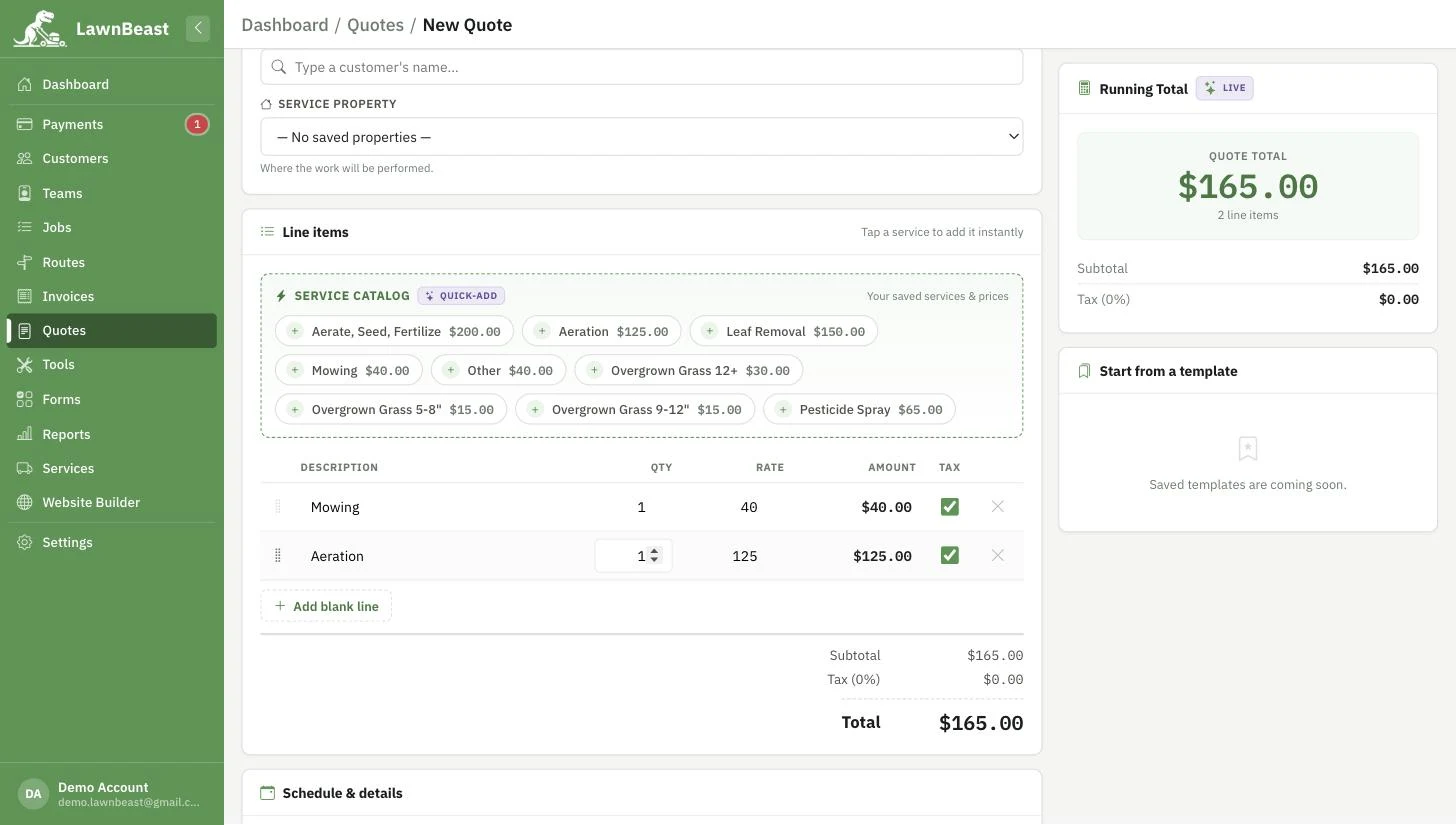
Add each line of work either by tapping one of your saved services from the catalog chips, or by clicking Add blank line and typing a description.
-
For every line, set the Qty and Rate — the Amount column computes itself — and leave the Tax checkbox on unless that specific line is tax-exempt.
Quantity and rate can't go negativeEvery line needs a quantity of at least 1 and a rate of zero or more — the builder won't let a line save otherwise.
How to check it worked
The running subtotal and tax total at the bottom of the line-item card update as you add or edit lines.
3Set terms and send it
-
Fill in Desired start date if the customer gave you one, and Quote valid until if you want a specific expiration — leave it blank and finalizing will set it to 30 days out for you.
-
Add anything you want the customer to see in Work request / comments (shown to customer) — scope notes, access details, what they originally asked for.
-
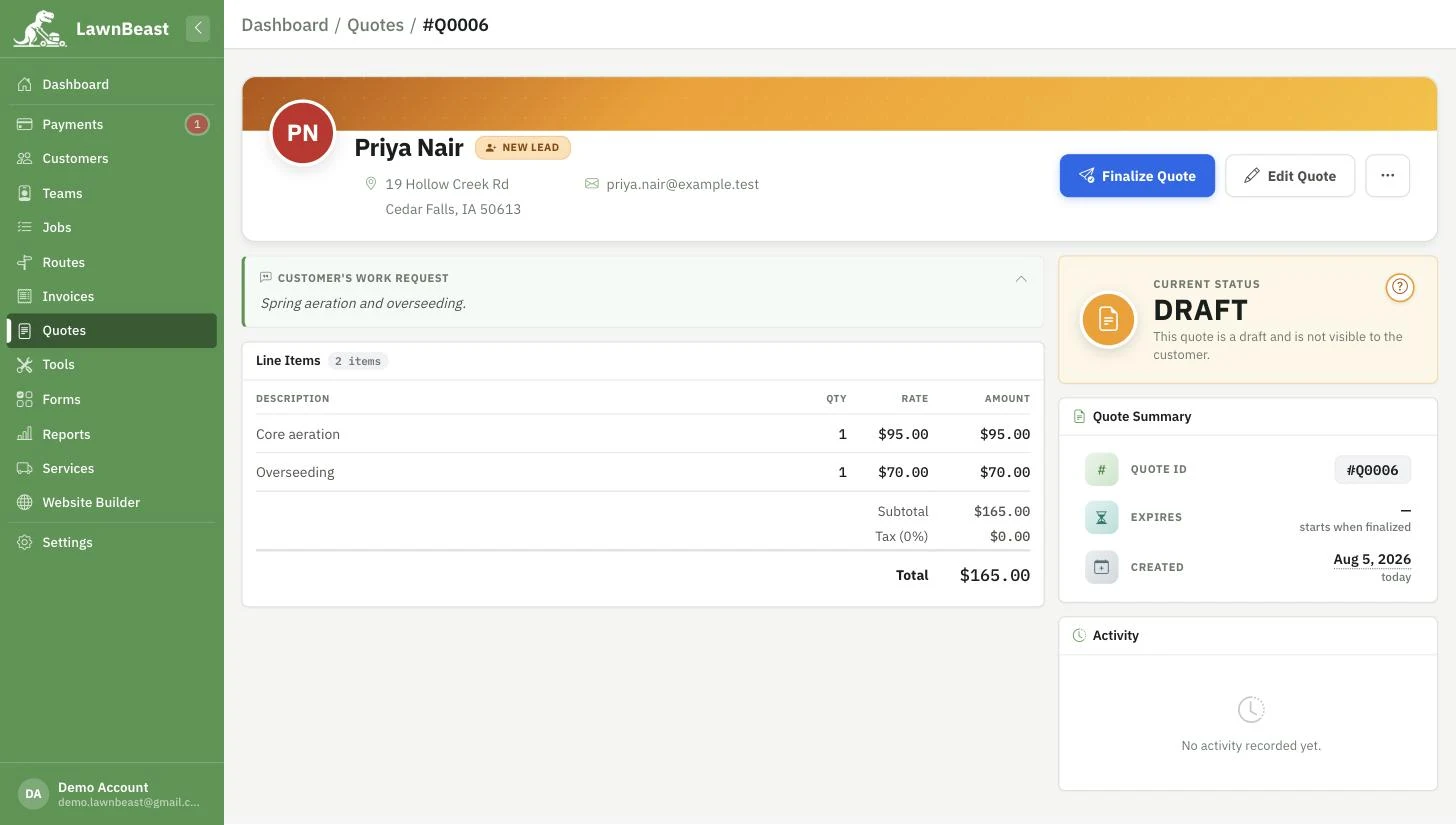
Click Create Quote. This saves it as a Draft — nothing is sent to the customer yet.
-
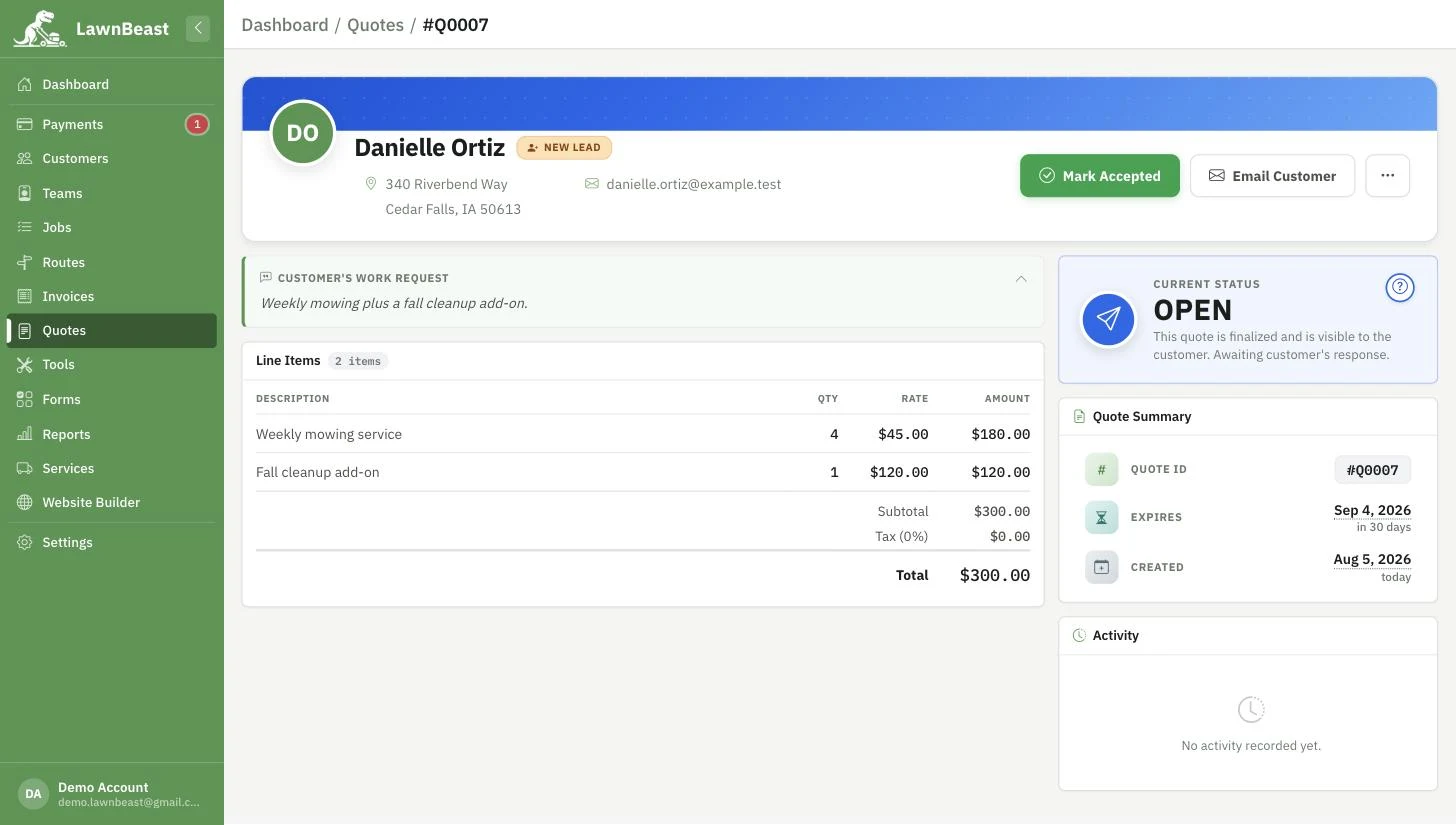
Open the quote and click Finalize Quote. This moves it to Open, locks in the tax rate the customer will see, and starts the validity window.
Finalizing locks the tax rateOnce a quote is Open, changing your Business Settings tax rate later never rewrites it — the rate shown to the customer stays exactly what it was when you finalized.
-
Click Email Customer to send the quote's link. Email is only available once a quote is finalized — it stays locked while a quote is still a Draft.
How to check it worked
The quote moves into the Open column on the board, and the customer receives an email with a link to review it — no login required on their end.
Reference
| Field | Default | What it does |
|---|---|---|
| Quote valid until | +30 days from finalizing | Applied automatically at finalize time if you leave it blank. |
| Tax rate | Business Settings rate | Read live while a quote is a Draft; frozen to the quote once finalized. |
| Per-line Tax toggle | On | Turn off for a specific tax-exempt line item. |