Manage Your Quotes
Track quotes on the board, record accepted or declined outcomes, reopen or archive, and act on several quotes at once.
1Track the pipeline on the board
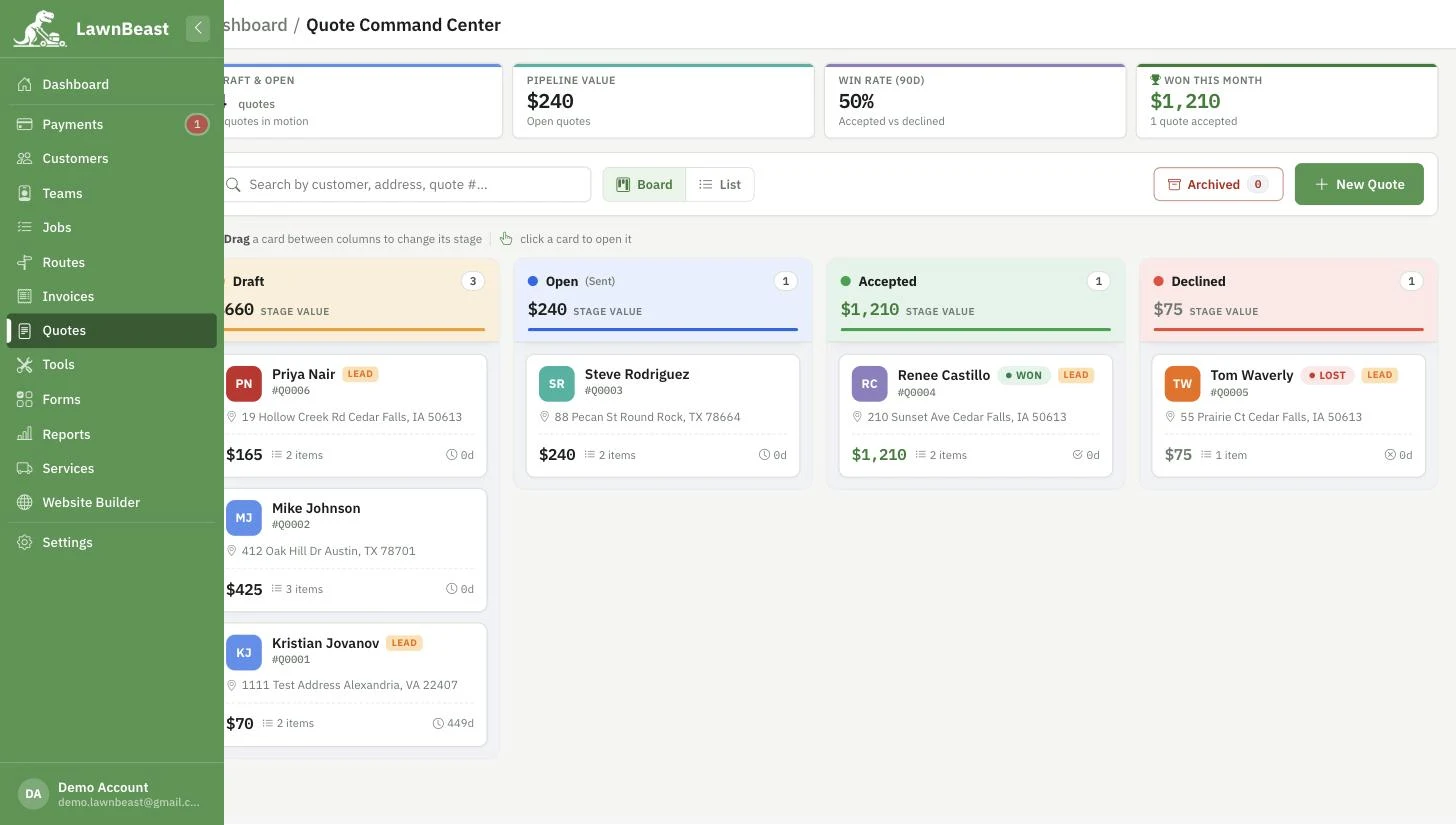
Every quote sits in one of four columns — Draft, Open, Accepted, or Declined — and can be dragged between them. Two tiles at the top of the board summarize where things stand: Pipeline Value totals every open bid, and the won-this-month tile shows how much you've closed and how many quotes that represents.
2Record the outcome
-
Open a quote that's Open and click Mark Accepted or Mark Declined once you hear back from the customer by phone or in person.
-
You don't have to do this yourself — the customer can accept or decline on their own from the link in their quote email, without logging in, or from their own Quotes list if they already have a portal account.
How to check it worked
The quote's card moves into the Accepted or Declined column, and the board's tiles refresh to reflect it.
3Reopen, archive, or act on several at once
-
Reopen a quote
From an Accepted or Declined quote, click Reopen Quote to move it back to Open so you can edit or re-send it. Because Accepted and Declined are meant to be outcomes, reopening one asks you to confirm first.
- Open → Draft ("Move to Draft") asks for confirmation too — it warns that the customer may already have an emailed link that this disables, and that the tax rate unlocks again until you re-finalize.
-
Archive a quote
Click Archive Quote to hide it from the daily board without changing its status — a Draft you archive is still a Draft underneath. An archived quote only allows Unarchive, Print, and Delete until you unarchive it.
-
Act on several quotes at once
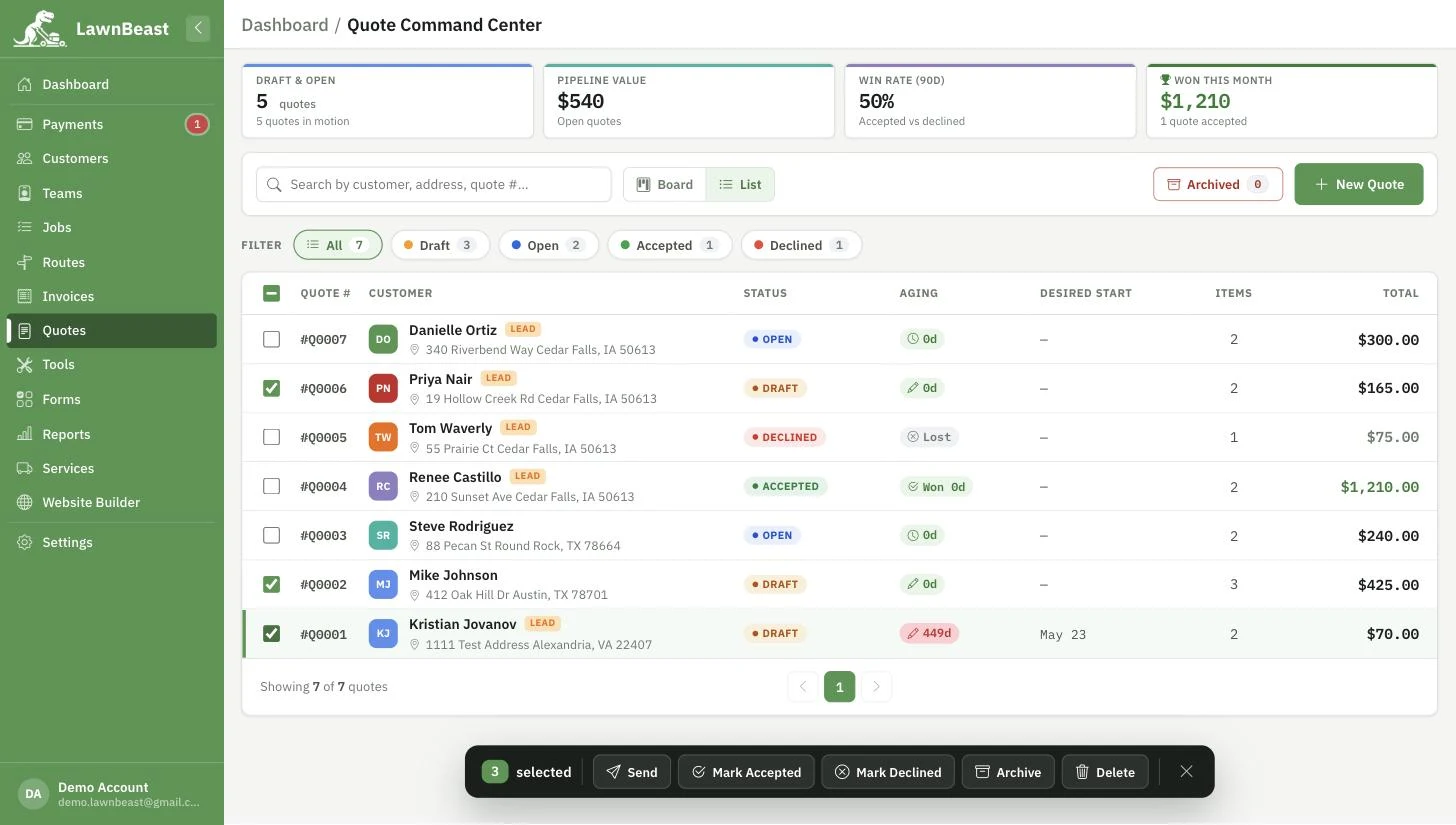
Select multiple quotes on the board and use the bulk-actions bar to Send, Mark Accepted, Mark Declined, Archive, or Delete all of them together.
A single batch can include up to 100 quotes.
How to check it worked
Each affected quote's card updates in place — new column, archived-drawer row, or removed from the board entirely — without a page reload.
Reference
| Transition | Needs confirmation? | Notes |
|---|---|---|
| Draft → Open (Finalize) | No | Locks the tax rate, starts the validity window. |
| Open → Accepted / Declined | No | Recorded by you, or by the customer via their link/portal. |
| Open → Draft | Yes | Disables the customer's link and unlocks the tax rate. |
| Accepted / Declined → Open (Reopen) | Yes | Treats a recorded outcome as no longer final. |