Read your A/R Aging report
See which invoices are overdue and how long they've been outstanding, so you know who to chase first.
A/R Aging sorts every invoice you're still owed money on into buckets by how overdue it is, so you can see at a glance who to chase first instead of scanning your whole invoice list for due dates.
1Open the report
-
Click Reports in the main sidebar.
-
In the Reports sidebar, click A/R Aging.
How to check it worked
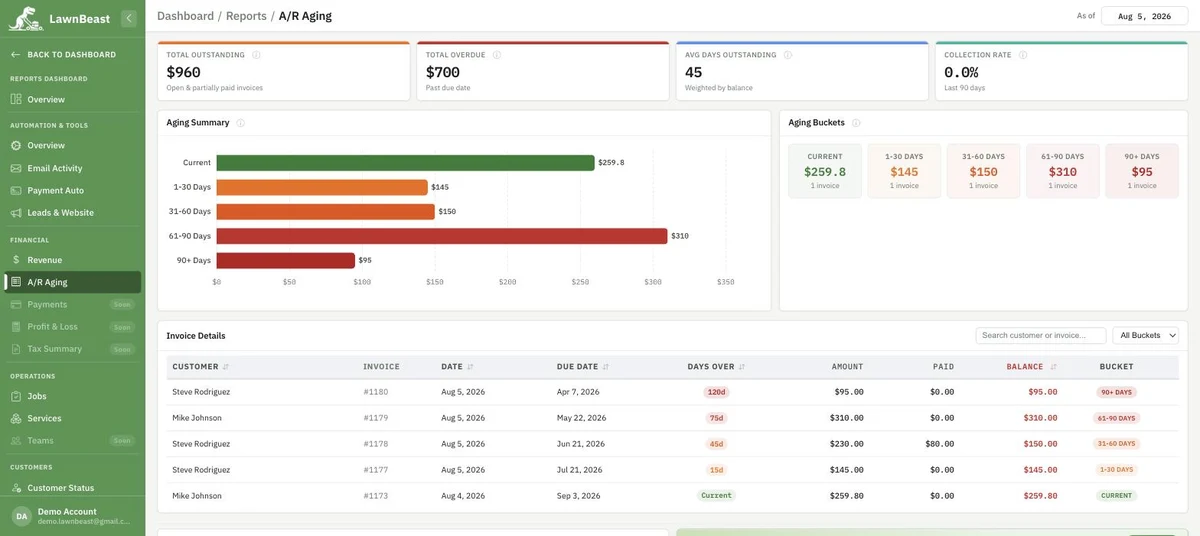
You're on the right page if the sidebar highlights A/R Aging and the header shows an As of date — that's today's date unless you change it.
2Read the buckets
Four KPIs sit across the top: Total Outstanding (every open or partially-paid invoice balance), Total Overdue (the part of that past its due date), Avg Days Outstanding (weighted by balance, so a large old invoice moves it more than a small one), and Collection Rate (percentage of invoiced amount collected in the last 90 days).
Below that, every unpaid invoice is sorted into one of five buckets based on how many days past its due date it is:
| Bucket | Meaning |
|---|---|
| Current | Not yet past its due date — or the invoice has no due date at all |
| 1-30 Days | 1 to 30 days past due |
| 31-60 Days | 31 to 60 days past due |
| 61-90 Days | 61 to 90 days past due |
| 90+ Days | More than 90 days past due |
-
Use the As of date control to see aging as of any day, not just today — useful for reconstructing what your receivables looked like at, say, the end of last month. It won't let you pick a future date.
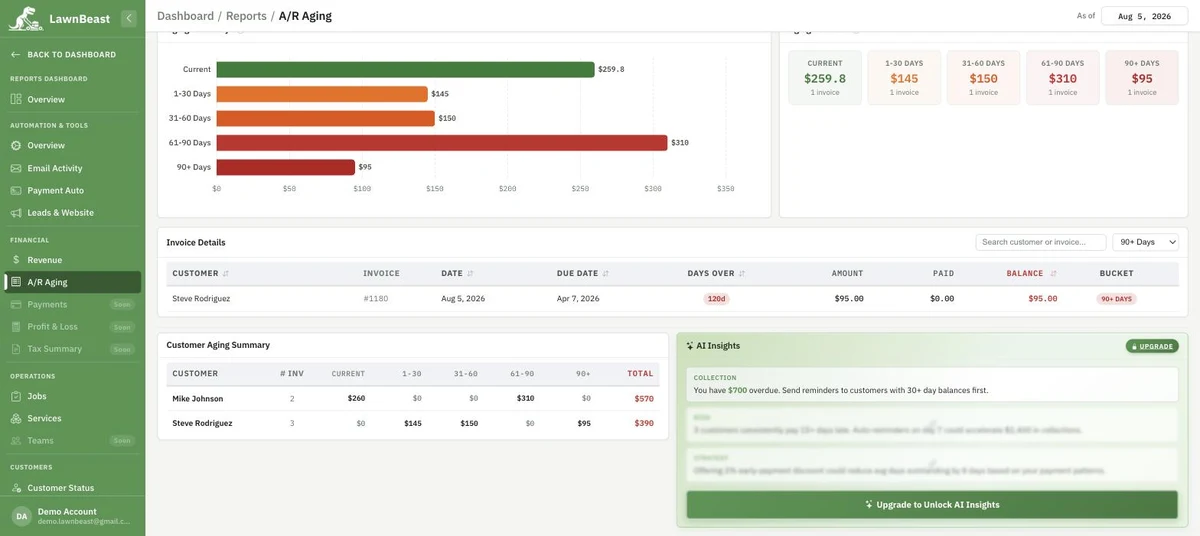
The card in the lower right shows one insight computed from your real overdue total, plus two locked panels behind an Upgrade link. Those two locked panels show the same example text for every account — they aren't calculated from your data. Don't treat them as advice about your business until that changes.
How to check it worked
The five bucket totals plus Current should add up to Total Outstanding at the top of the page. If every bucket reads $0, you have no open or partially-paid invoices right now.
3Find and prioritize specific invoices
-
Scroll to Invoice Details. Type a customer name or invoice number into the search box, or use the All Buckets dropdown to show only one aging window — 90+ Days first is the usual starting point.
-
Click any column header with a sort icon — Customer, Date, Due Date, Days Over, or Balance — to sort by it.
-
Check Customer Aging Summary below the invoice list if you'd rather think in terms of customers than individual invoices — it's one row per customer, with a column per bucket and a total.
How to check it worked
Filtering to a bucket should shrink the table to only invoices in that window, and the bucket badge on each remaining row should match what you picked.