Build and publish a daily route
Turn today's scheduled jobs into an optimized route, adjust it if you need to, and send each crew its own emailed schedule.
You need at least one job scheduled for the day you're routing, and at least one crew created if you want to assign stops to more than one. If you dispatch from a specific yard or shop, set that up first — see Set your dispatch depot.
1Build and optimize the route
Open Routes and pick the day you're dispatching. If jobs are already scheduled for that day, the route builds itself the moment the page loads — there's nothing to click. A day with no scheduled jobs shows an empty state instead, with Build the route to pull in anything you add afterward, or Start an empty route if you're routing manually.
-
Click Optimize route to resequence the day's stops for the shortest drive.
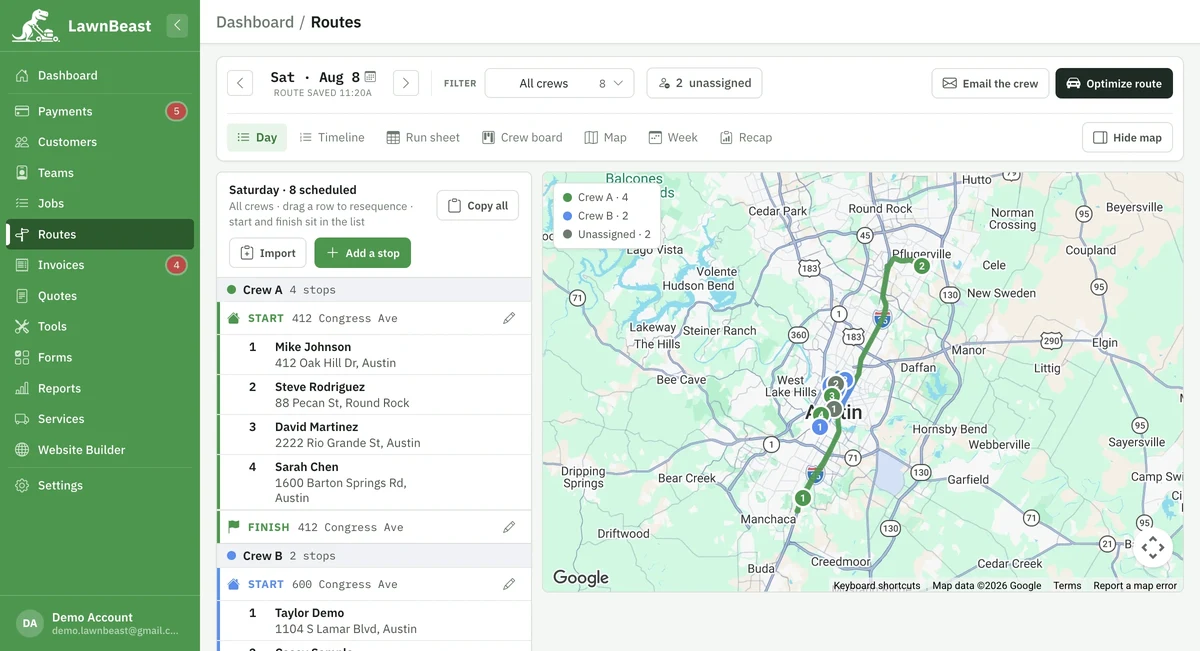
Building and optimizing are both repeatable — re-running either one re-syncs the same route instead of creating a second one.
2Adjust it before you send it
- Keep a stop where it is. Open the stop and click Pin position. A pinned stop shows a filled pin icon and Optimize will never move it again — click Unpin to let it move.
- Move a stop to another crew. Switch to the Crew board view and drag the stop's card to a different crew's column.
Dragging a stop to another crew reassigns that job's line items to the new crew, not just its place on today's route.
3Email the crew
This is the only step that reaches anyone outside LawnBeast — one press emails every crew member their own stops for the day, and nothing else on this page does that.
-
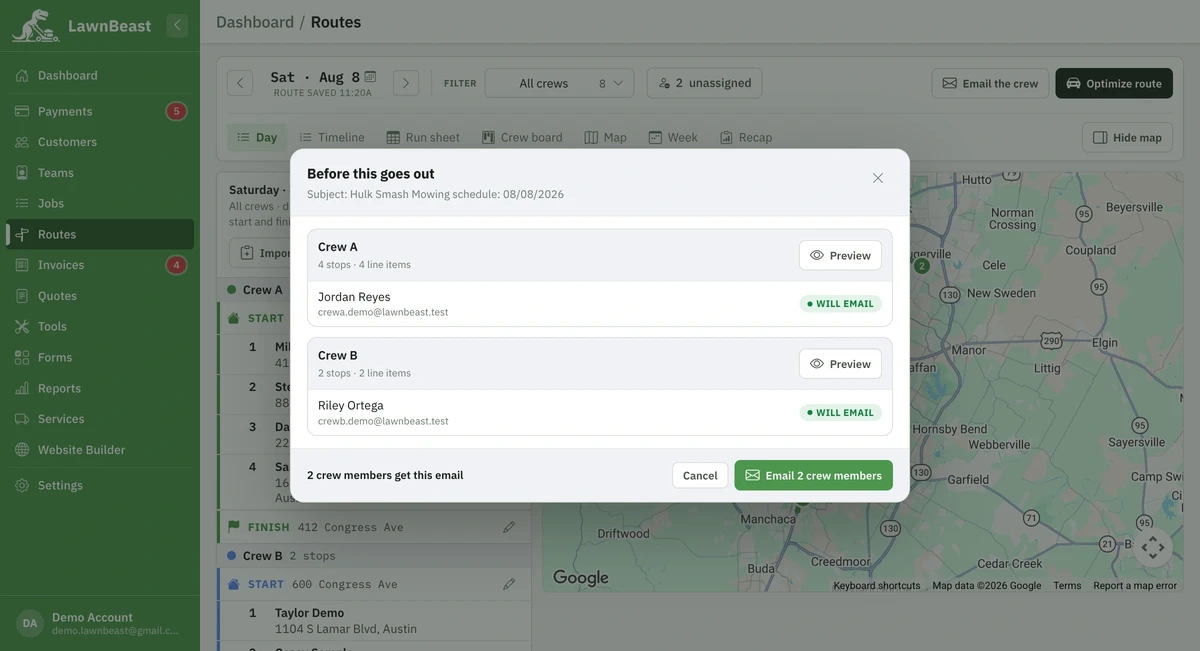
Click Email the crew — on the Crew board this same button is labeled Publish to crews. Both open the same confirmation.
-
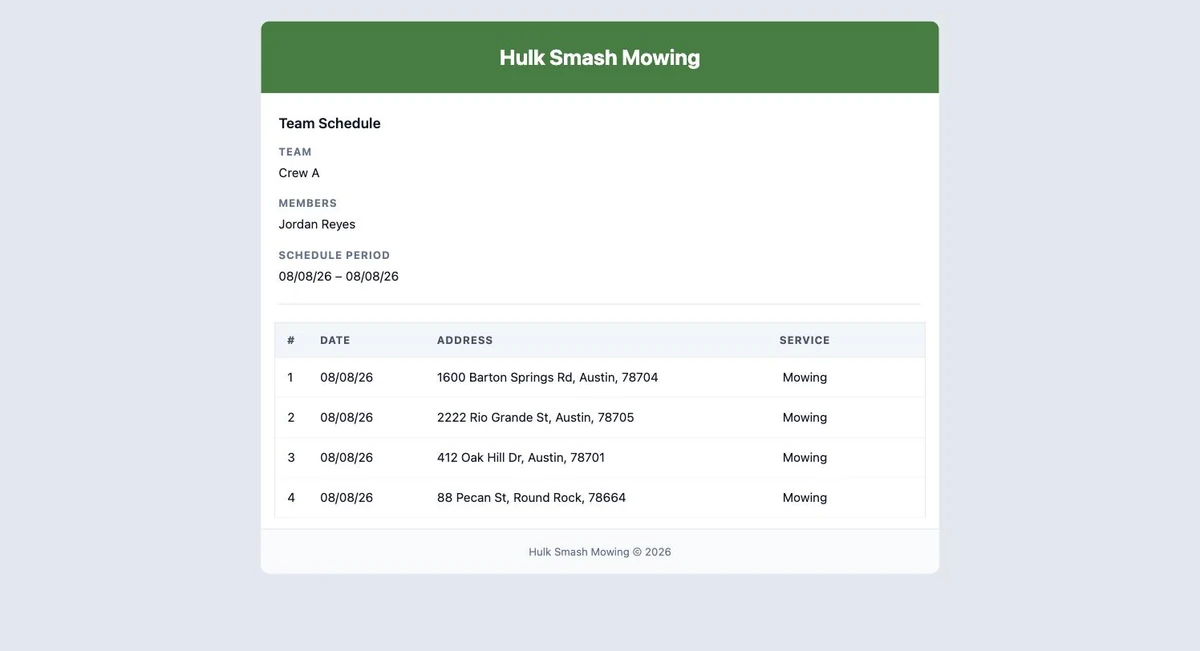
Under Before this goes out, review the breakdown — one card per crew, showing exactly who's about to be emailed. Open a card's preview to see that crew's actual letter before anything sends.
-
Click the confirm button — it's labeled with how many crew members are about to get an email, like Email 1 crew member, so you know your audience before you send.
How to check it worked
The status pill on the board switches from Draft to Published with the send time. If you make changes and send again, the confirm button relabels itself to Re-send to N crew members instead of refusing — publishing is never a one-time action.
The seven views
Everything above happens on the Day view, which is where Routes opens. The switcher at the top of the page offers six more, and they all show the same day — switching carries your date and your crew filter with you, and none of them reorders or edits your stops. (Each load does quietly re-sync the route against the day's schedule, the same safe sync Build and Optimize already use, so a job someone added elsewhere shows up when you switch.) Pick the view that matches what you're about to do.
The day as an editable list — on All crews, one run per crew with its own start and finish. The only view that can edit a stop's details, take one off the route, or set a start and finish for this route alone without touching your depot. It's also where you add a stop, paste in a block of addresses, or copy them all out.
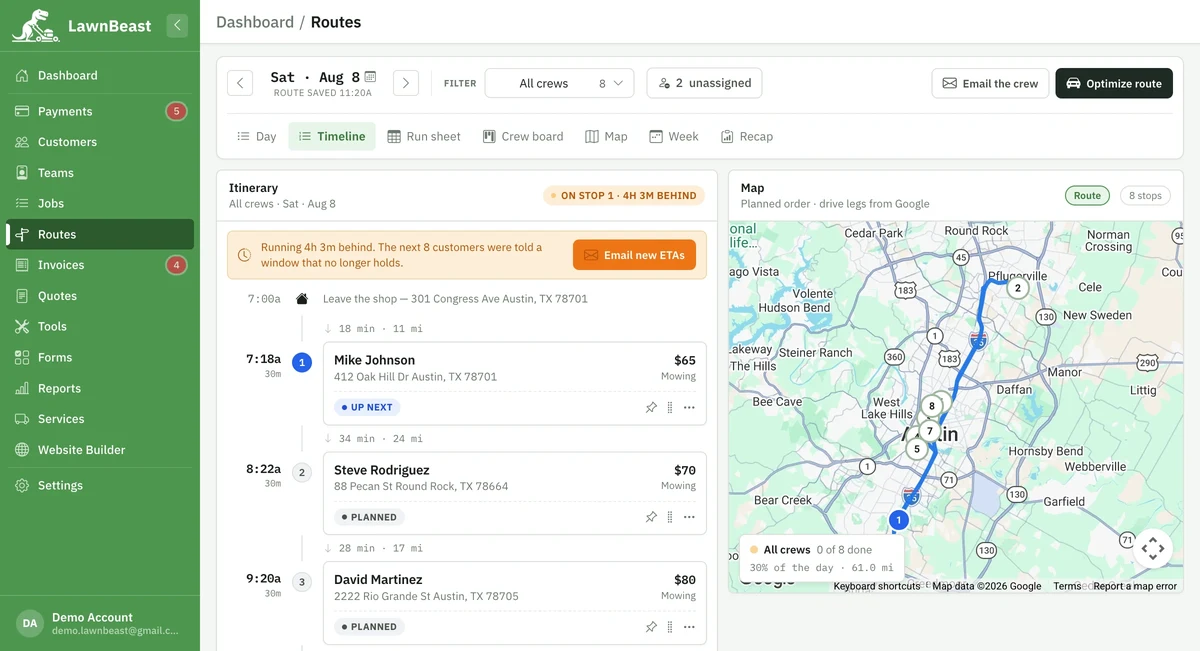
Planned arrival times down the whole day beside the map. This is the only view that emails your customers — when the day slips, the banner offers to send everyone still waiting a new ETA, and an individual stop can send an “on the way” note.
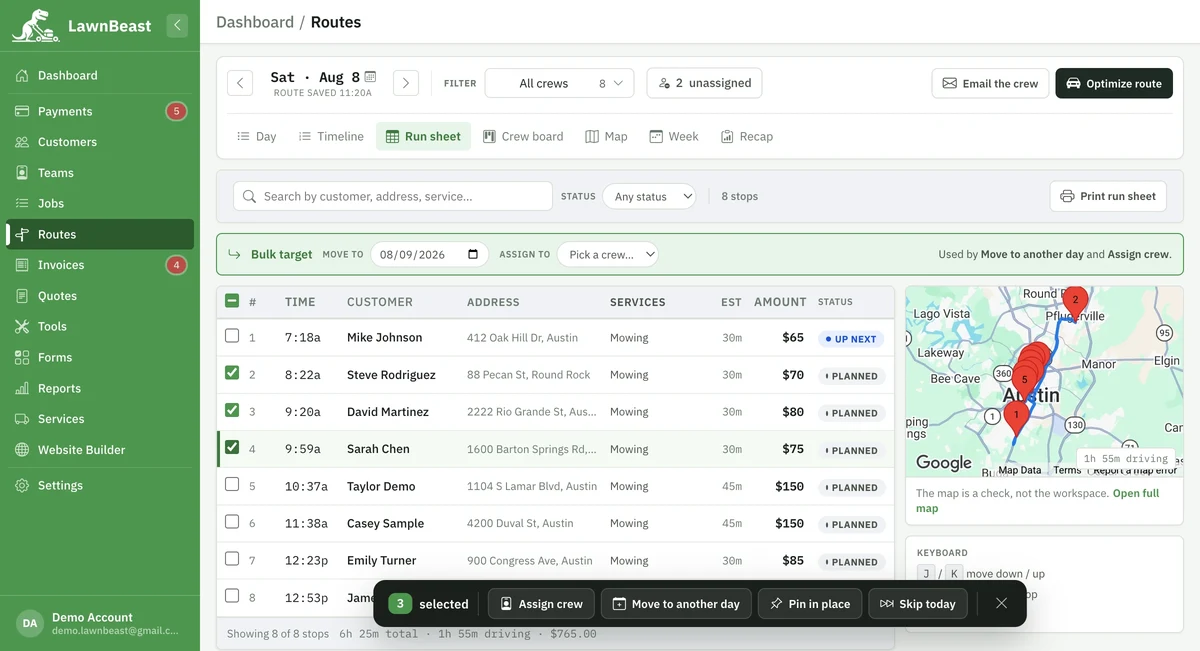
Search by customer, address or service and filter by status. Select any number of stops and Assign crew, Move to another day, Pin in place or Skip today in one go. It also holds Print run sheet — the only print anywhere in Routes.
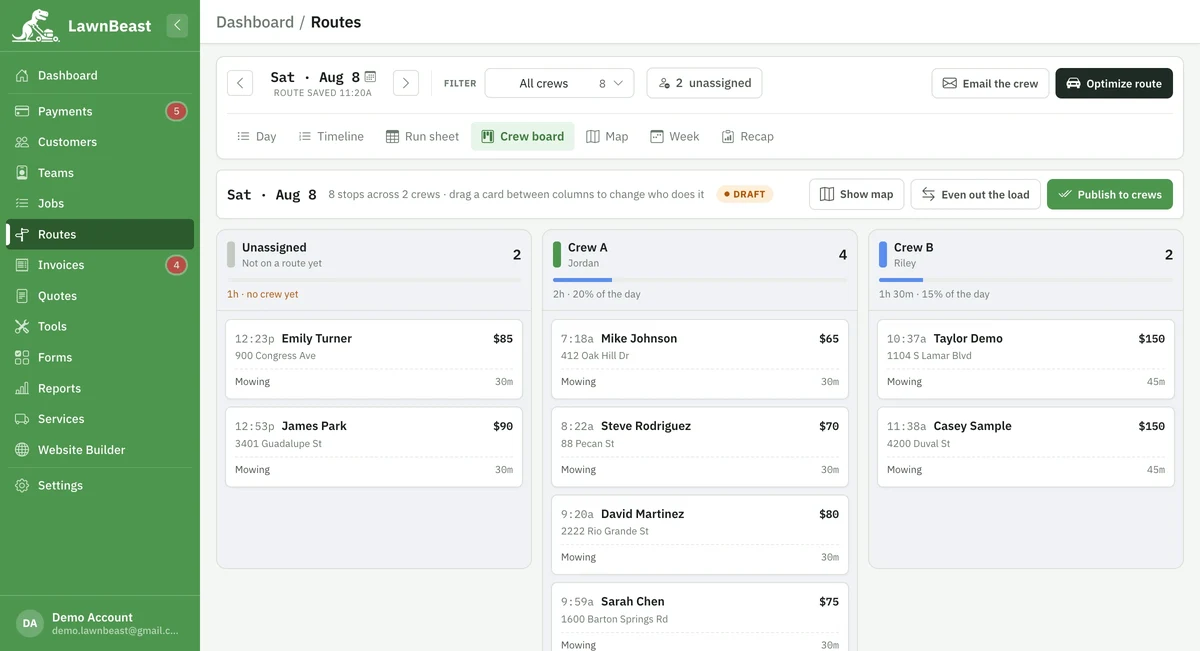
One column per crew plus the unassigned pile, with each crew's share of the day under its name. Drag a card between columns to change who does the job, Even out the load to shift unpinned, un-started work off an overloaded crew, and Publish to crews when it's settled.
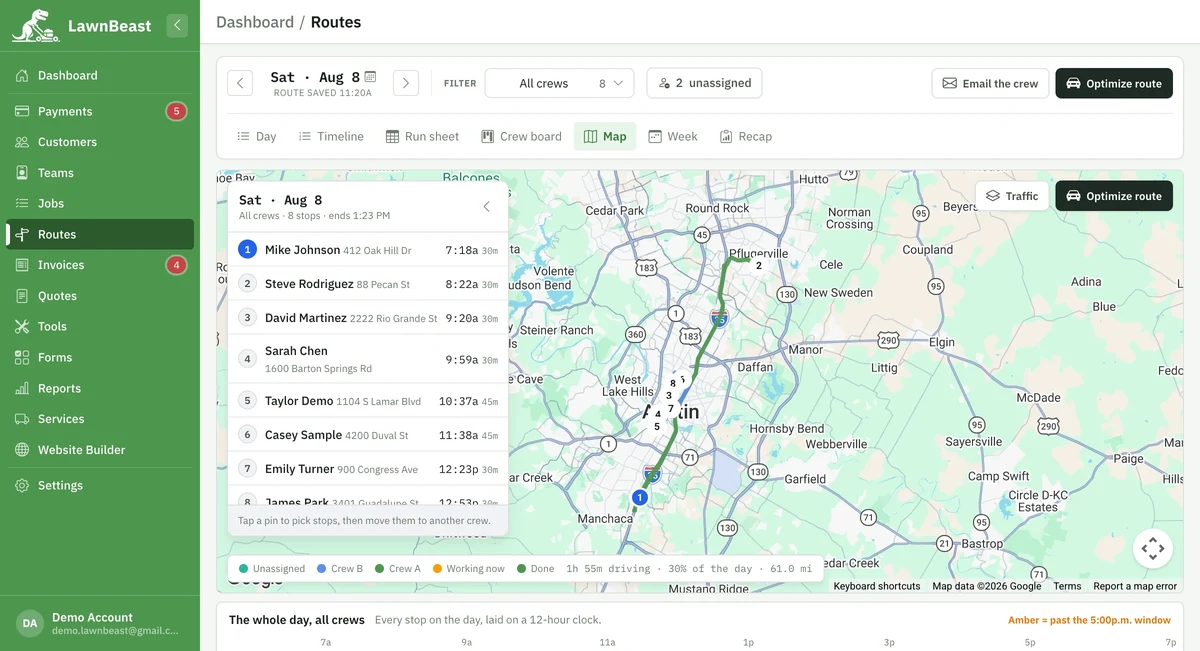
The whole day as pins with the drive drawn between them, and the itinerary in a rail alongside. Turn on a live Traffic overlay, or select stops straight off the map and hand the whole selection to another crew in a single move.
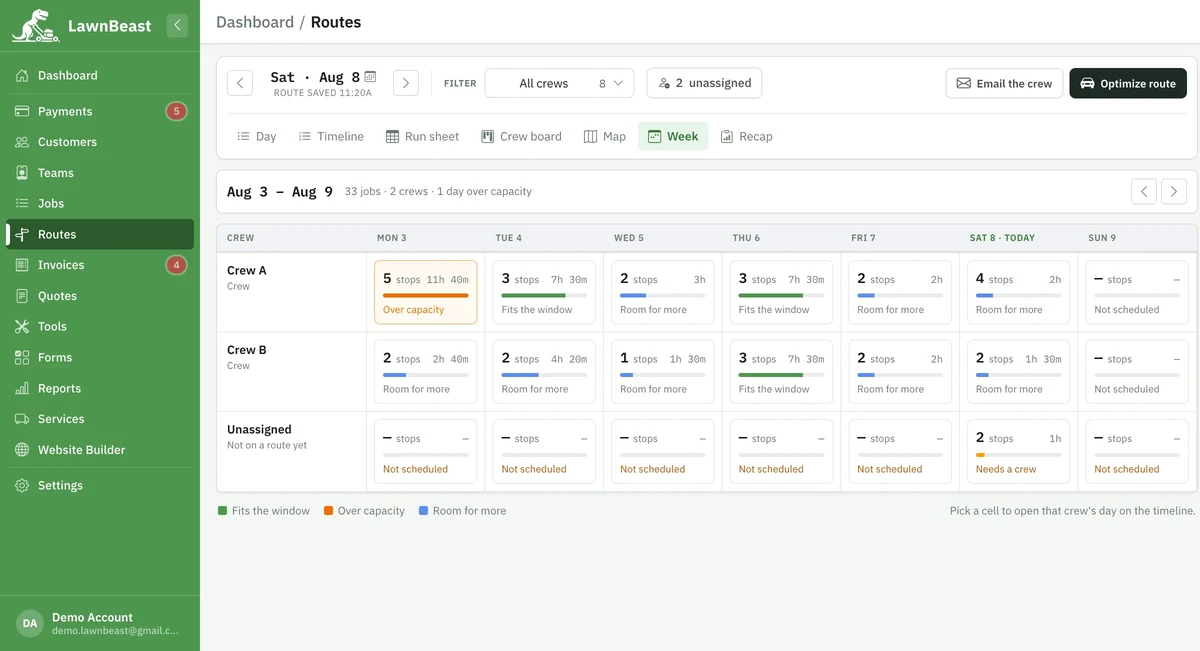
A crew × seven-day grid flagging who is over capacity and who has room, so Thursday's pile-up is visible on Monday. The other six days are read straight from your schedule without building a route for any of them. Click a cell to open that crew's day.
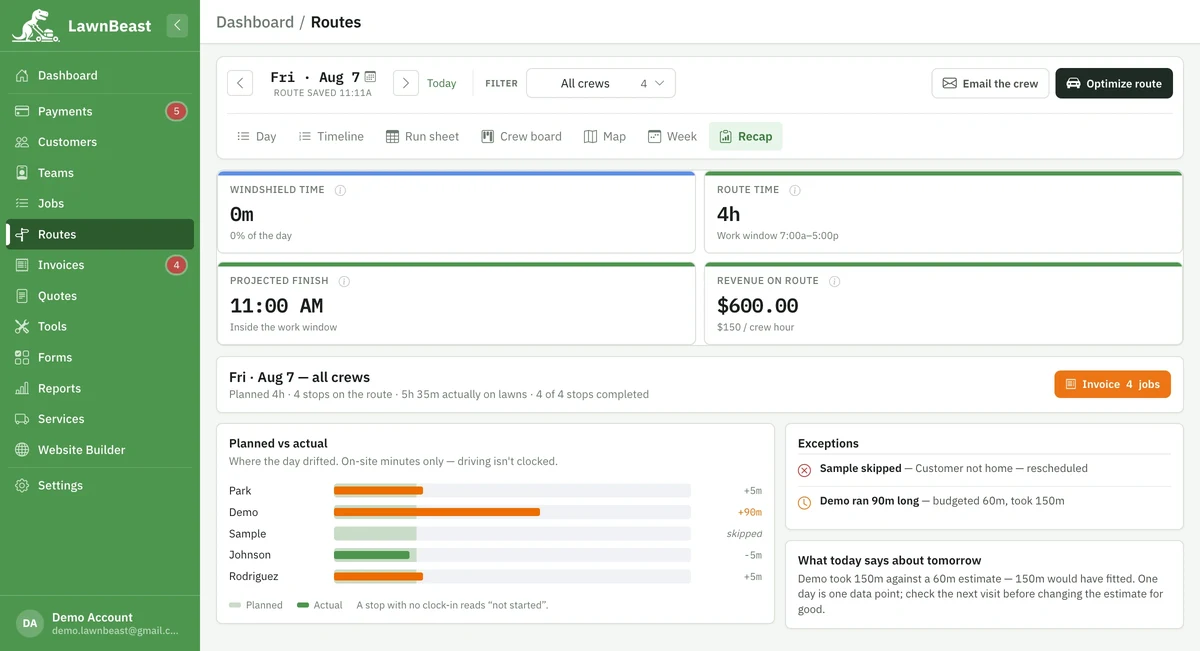
Planned against actual time on every stop, so you can see where the day drifted, plus the exceptions worth a second look — a stop that ran long, a stop nobody got to. The finished work that hasn't been invoiced yet is one click from the invoice builder.
| View | Reach for it when | What only this view can do |
|---|---|---|
| Day the default |
You're setting up the day and want to change what's on it. | The only view that can edit an existing stop's details, take a stop off the route, or set a start and finish for this one route without touching your depot. It's also where you add a stop — including a bare address with no customer behind it — paste in a block of addresses, or copy them all out. |
| Timeline | The day is under way and you want to see where it stands against the clock. | The only view that emails customers: Email new ETAs when the day is running behind, and Email "on the way" for a single stop. |
| Run sheet | You need to find specific stops, or change a lot of them at once. | Search by customer, address or service and filter by status — then select stops and Assign crew, Move to another day, Pin in place or Skip today in one go. It also holds Print run sheet, the only print anywhere in Routes. |
| Crew board | You're deciding who does what, across more than one crew. | One column per crew plus an unassigned pile. Drag a card between columns to change who does the job, Even out the load to shift unpinned, un-started work off an overloaded crew, and Publish to crews from here. |
| Map | The geography is the problem — a stop looks out of the way, or two crews are crossing paths. | Turn on a live Traffic overlay, and select stops directly on the map to hand the whole selection to another crew in one move. |
| Week | You're looking past today — is Thursday overloaded, is Friday half empty? | A crew × seven-day grid flagging who's over capacity and who has room. The other six days are read straight from your schedule without building a route for any of them, so glancing across the week costs nothing. Click a cell to open that crew's day. |
| Recap | The day is done and you want to know how it actually went. | Planned vs. actual time on every stop, the exceptions worth looking at, and a shortcut into the invoice builder for the jobs that finished and haven't been invoiced yet. |
LawnBeast doesn't track vehicles. Everything the Timeline and Recap views call live or actual is derived from your crew starting and finishing jobs on their own screens — so a stop nobody clocked into reads as not started, never as a stop that took no time.
Changing the order isn't Day's alone: you can drag stops into a new order on the Day view and on the Timeline, and nudge a selected stop up or down with Alt + the arrow keys on the Run sheet.
On All crews, the Day view splits the list into one run per crew, each with its own start and finish and its own numbering, with the unassigned stops last — five crews out on the same Tuesday are five runs, not one long list.
Reference
| Action | What it changes | Reaches anyone outside the app? |
|---|---|---|
| Build | Syncs RouteStop rows from the day's scheduled jobs | No |
| Optimize route | Resequences unpinned stops for the shortest drive | No |
| Pin position | Locks a stop's place against future optimizes | No |
| Reassign (Crew board) | Moves the job's line items to a different crew | No |
| Email the crew / Publish to crews | Marks the route Published and stamps the time | Yes — emails each crew its own stops |
Building a route to no schedule at all, or moving a stop off a job that's already started, are both refused rather than silently ignored — the page tells you why.